

 Technical Specifications
CURELINK OR Software Platform
Telemedicine System · OR Application · Management Panel · 4-Channel HDMI Viewer · MultiView Layouts · Recording · Live Streaming · Video Call · HIS Integration
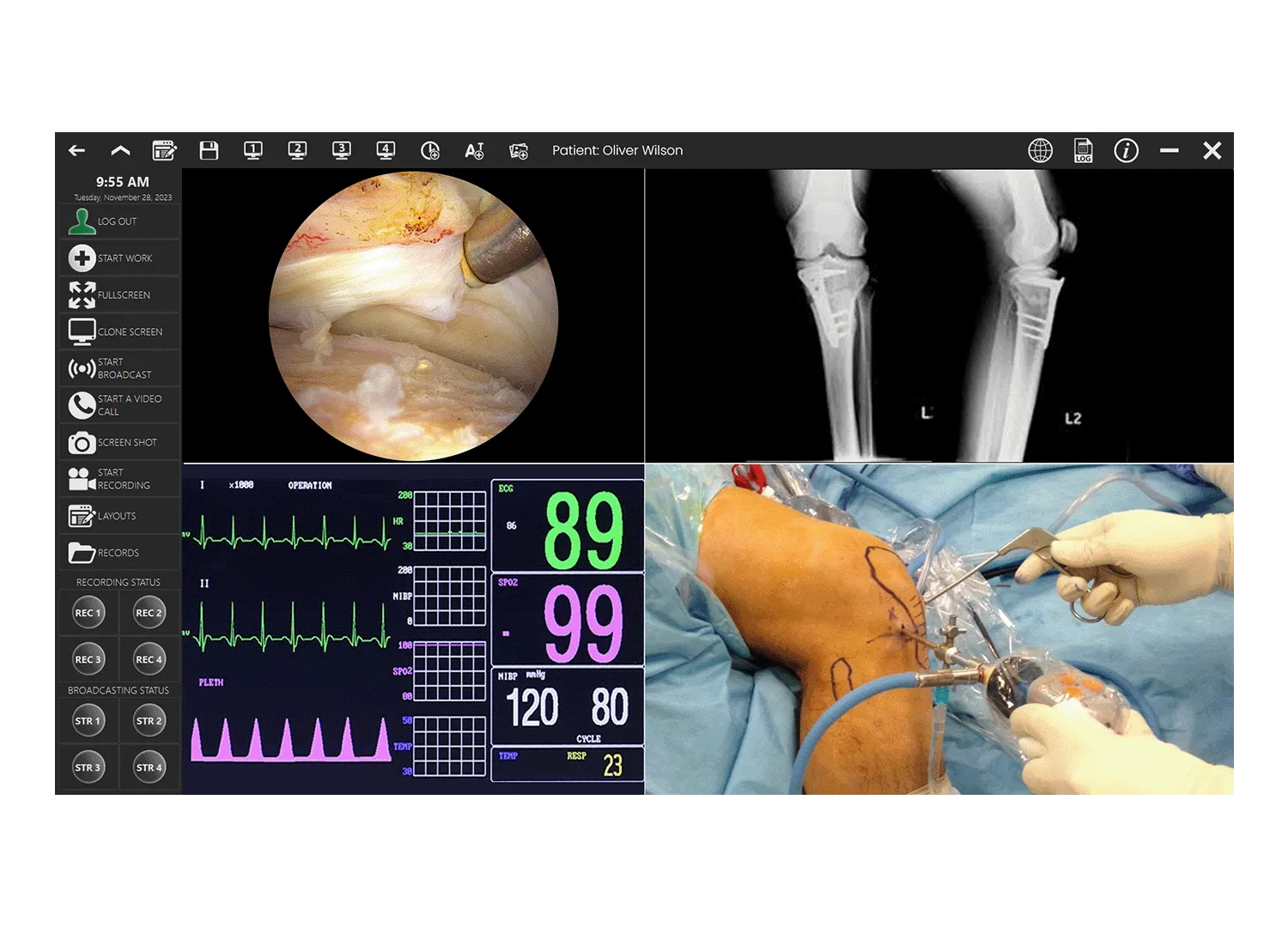
CureLink is a two-component clinical software platform designed to run on CureVision OR consoles (VPC-240C, GP-449) in the operating room. The OR Application provides real-time, multi-channel surgical image viewing, flexible layout management, per-channel recording and live streaming, and direct HIS connectivity — all from the OR console display.
The web-based Management Panel gives administrators and remote observers secure access to all OR rooms, live broadcasts, video calls, user management, and operation records from any browser on the hospital network.
CureLink OR Application auto-starts at Windows boot and is designed to remain open continuously — maintaining live HIS data exchange at all times. The application runs alongside PACS and other clinical software without interference — it can be minimised to the system tray while other applications run in the foreground. Management Panel is accessible from any browser on the hospital network — no client installation required. Supports EN, TR, ES, PL, and FR languages.
Two Components
- CureLink OR App: Desktop app on VPC-240C Runs on OR console/display
- Management Panel: Web server — any browser Remote admin & telepresence
Input Sources
- HDMI (up to 4 channels)
- SDI (via capture card)
- DVI-D / DVI-A / RGB
- S-Video / Component
- Surgical lamp cameras
- Auto-detection mode
HIS Integration: Filter by modality, patient, date Manual work creation Patient-linked recording
CURELINK OR Application
- Viewer: Displays simultaneous HDMI/SDI input channels on screen. Each channel is independently visible, sized, positioned, and named. Supports HDMI, SDI, DVI-D, S-Video, Component, and Auto-detect source types.
- Full Screen: Make any channel full screen with double-click or ALT-F. Clone any channel to a second display (ALT-T). Adjust per-channel audio volume — device audio or microphone independently.
- 4K60 Routing Flexible MultiView Layouts: Drag-and-drop channel resize and reposition. Save custom screen layouts for reuse. Select from default layouts — choose which channel appears in which position. Delete unwanted layouts. User-friendly drag-and-drop routing interface — select a layout and source, then assign to any destination display with a single gesture.
- Per-Channel Recording (REC 1–4): Start and stop recording on any of the 4 channels independently. Recordings are linked to patient and opera tion data. View recordings in built-in video player with timeline navigation and variable playback speed. Visual ‘recording’ indicator displayed on the channel currently being recorded.
- Live Streaming (STR 1–4): Broadcast any channel live to the CureLink server. Up to 4 simultaneous streams per room. Remote observers access streams via browser — no specialist client software required. Visual ‘stream’ indicator displayed on the channel currently being streamed.
- OSD Overlay System: Add up to 16 information layers per channel — text annotations, timestamps, or images. Control position, size, font, color, and transparency. Fully configurable for clinical documentation and teaching. CureLink enables on-screen text and image overlay during telepresence and recording, also allows compete review of recorded content.
CURELINK Management Panel
- Multi-Room Dashboard: Overview of all OR rooms — top 5 by broadcast count, user rankings, live broadcast indicators. Active streams shown on dashboard. One-click access to any room's management page.
- Live Stream Monitoring: Monitor up to 4 broadcast channels per room simultaneously from any browser. Watch live surgical video from Channel 1, 2, 3, or 4 — or all channels at once in split-screen view.
- Video Call / Telepresence: Start and end video calls on any active broadcast channel. Invite remote participants by email — private (specific address) or public (link only). Manage invitee lists per room and channel.
- User & Permission Management: Add users with role-based permissions. 17 granular permission types — user definition, snapshot, recording, streaming, video call, operation start, records access, export, room management, and more.
- HIS-Linked Operation Records: Operations started from the OR console link recordings to patient data. View and export operation history. Records browsable per room, per user, per date. PACS-compatible workflow.
- Room Management & Control: Start/stop broadcasts, initiate/end video calls, start/stop recording — remotely from the Management Panel. Room name editing. Device connection status indicator (green = connected / red = offline).
